As a game host, you will need to set up the game for your guests to use. For all the other players, there is nothing to do but type in their name and hit play for the game you have created. Thankfully, setting up a game is pretty easy and literally can be completed in 10 seconds when you get used to it. All you need to know is:
- Number of players you have
- Type of game you wish to play (Pairs, Teams, Individual)
- One winner (Howell type movement) or two winners (Mitchell type movement)
- In social bridge their might be other factors such as someone who is less able to move downstairs or:
- Maybe you have 18 players and only 4 tables (We can help here).
To set up a game you must first have an account.
Once you have an account and verified your email:
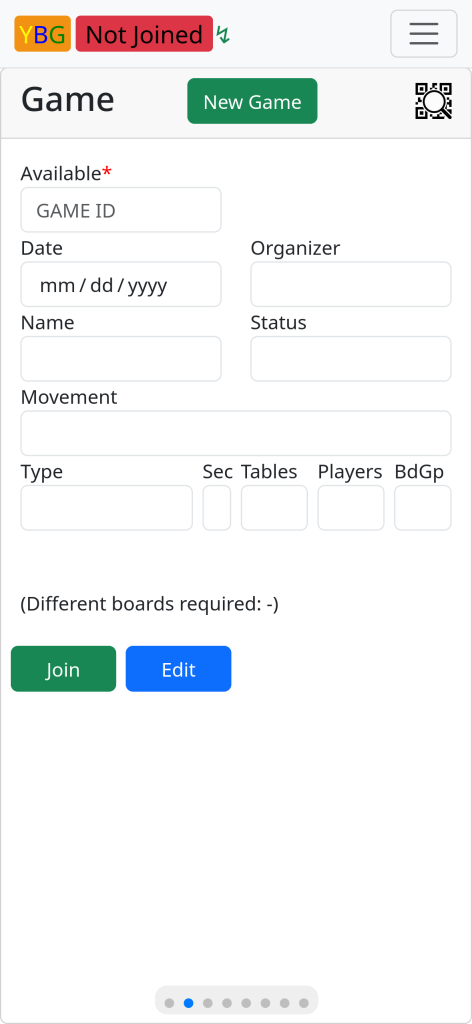
Open the “Game” form either by using the menu in the top right corner or swiping to the left (or right, depending on where you are currently).
Tap the “New Game” button at the top of the screen. Choose the game type (Pairs) and enter the number of players (18)
You will see a list of games that are for 5 tables. (See below). Clicking the ‘Expanded’ checkbox will show more entries in a concise form. Click on the 🛈 for the detailed entry.
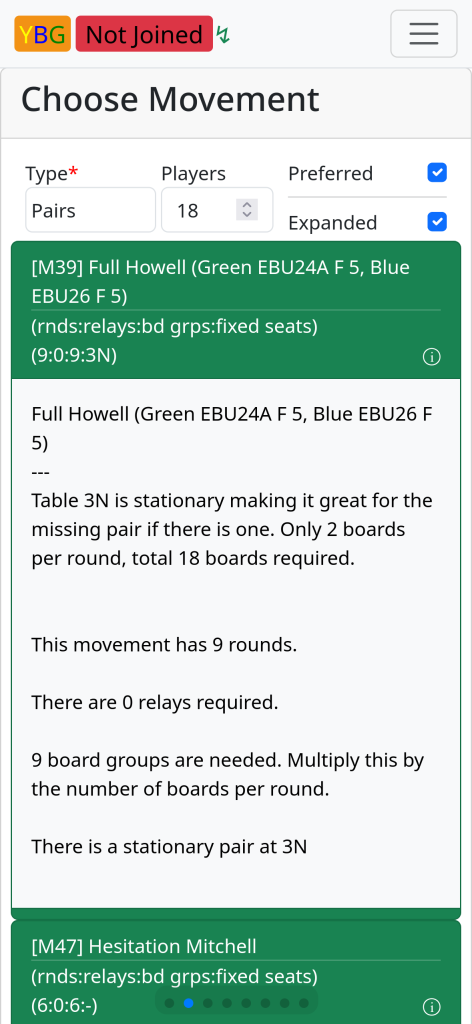
The descriptions vary in quality but the critical information is shown in the top of each in the parentheses:
(rnds:relays:bd grps:fixed seats) (9:0:9:3N)
This indicates that this game (5 table full Howell) has 9 rounds. There are no “relays” required. A relay is name for sharing boards between tables in the same round. There are 9 board groups required. A board group is the set of boards at any table for each round. And, table 3NS has a stationary pair. For social games, this can be very useful information (People who can’t use the stairs).
Tap the game you want to play or swipe down to see more OR, click on the preferred checkbox to see every possibility. There are a lot, many of them are repeats under different names that are known for the same movement.
This example will choose the 3rd one on the list “[F34] Full Howell”
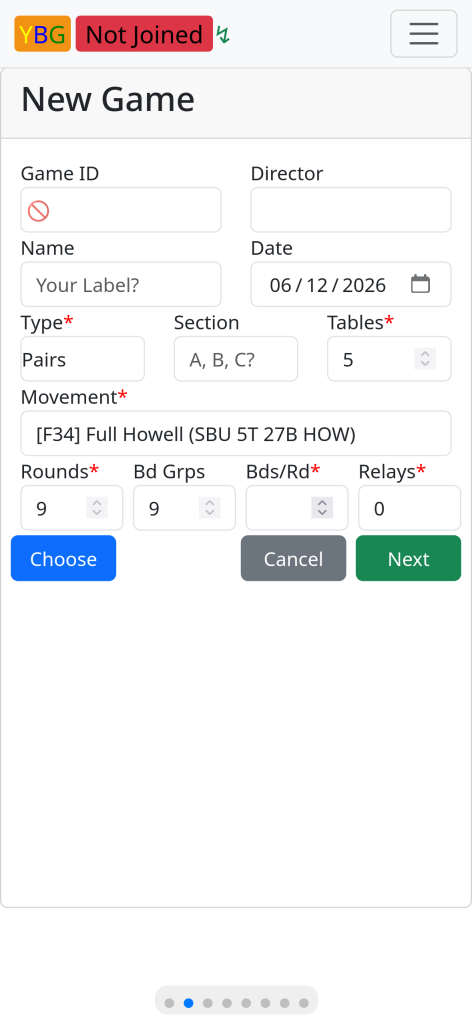
Most of this can be ignored. Just type in the number of boards per round in the lower right. “Bds/Rd”. I would suggest 2 boards per round, making a total of 18 boards played. If you choose 3 boards per round that would make a total of 27 boards, etc.
NOTE: If the number of boards groups (Bd Grps) is different from the number of “Rounds”, you will need to have more boards available. The number of boards needed is:
Boards needed = Bd Grps x Bds/Rd
The number of boards played is:
Boards played = Rounds x Bds/Rd
We will choose 2 boards per round and click “next”:
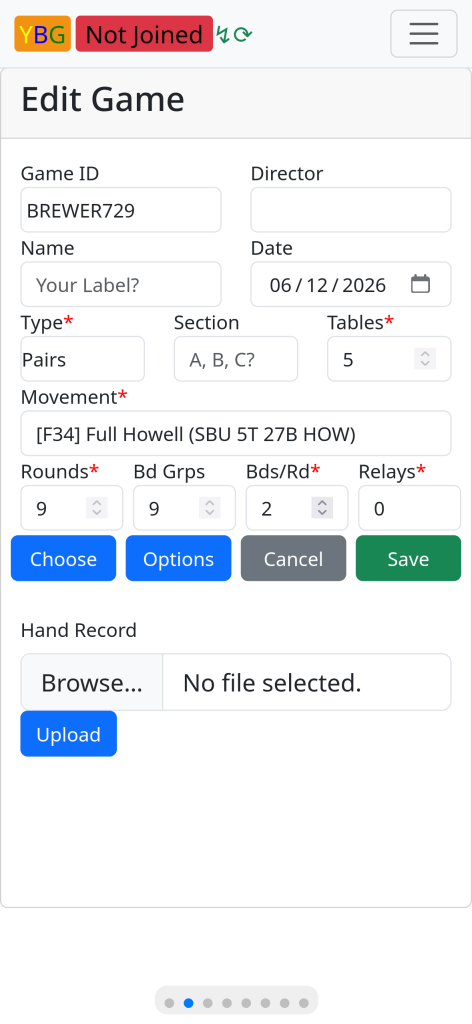
At this point there are options that can be set but I suggest you ignore that for the time being and click “Save”
The game is now ready to go. To make it easy for other players who have never used this app before there is a QR code in the top right corner.

Clicking on that will allow other users to just scan the code from their phone to open the app and connect to the game. Continued below:-
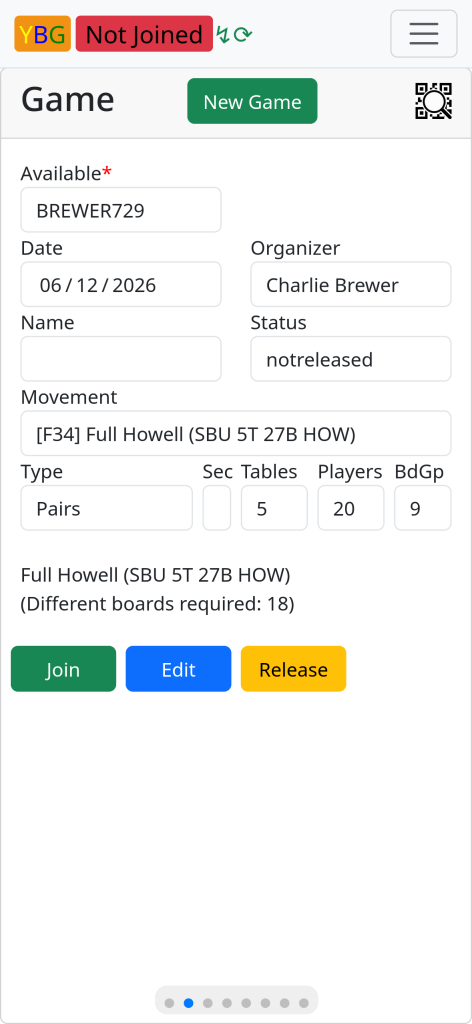
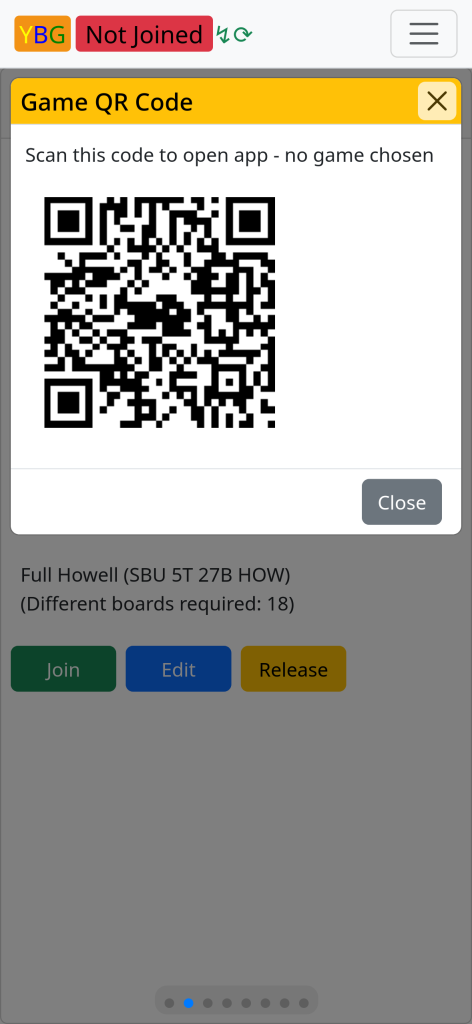
Players can now connect to the game but they are not yet able to choose a seat. This is the opportunity to explain to the players how the event will continue. Once players have physically taken their seats (or on the way to the tables) click the ‘Release’ button. This will allow players to ‘Take a seat’ and add their partners to the seating chart for their chosen table.
On your device, on the “Table” screen, you can see how many people are currently seated at the bottom of the screen. You can see all the tables and all the seats. In the example below, currently you are the only person seated. When all the seats are taken you can “Start” the game, back on the “Game” screen.
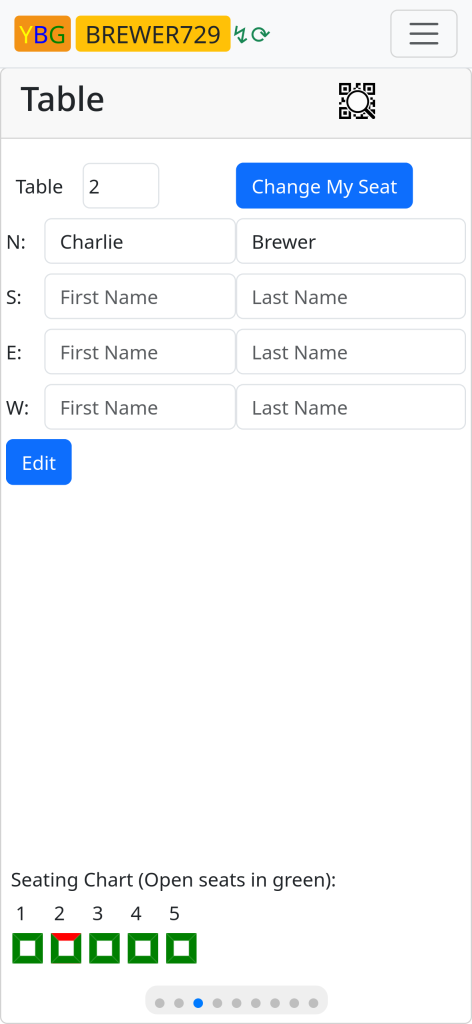
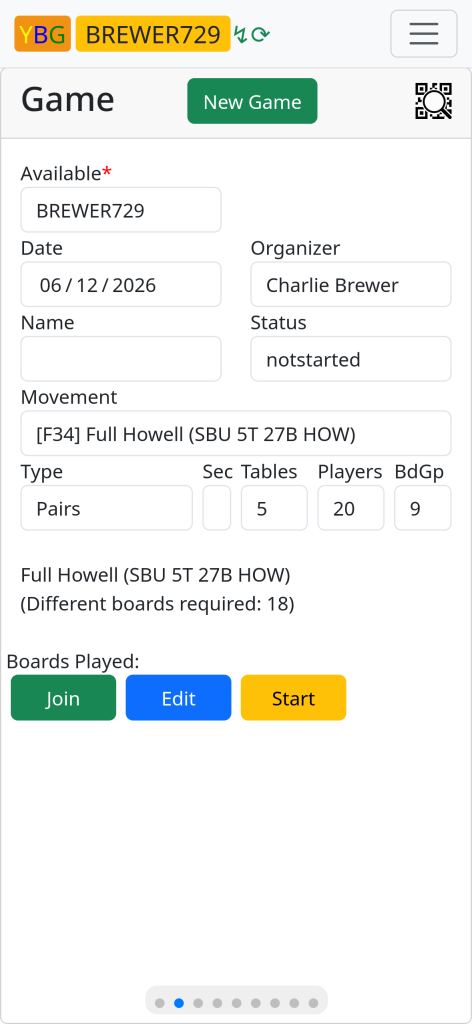
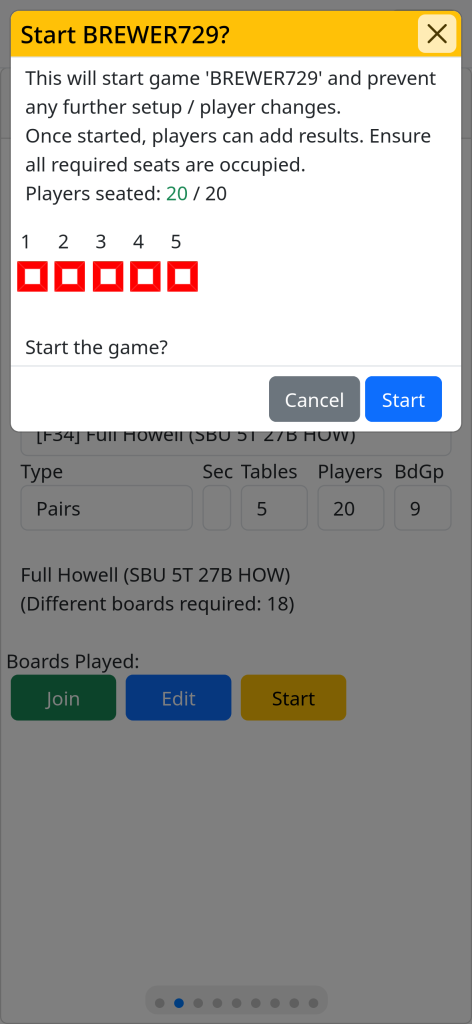
Note that when you click the “Start” button, it will ask for confirmation. Once the game is started, players can now enter scores on the “Play” screen. See Playing a Game
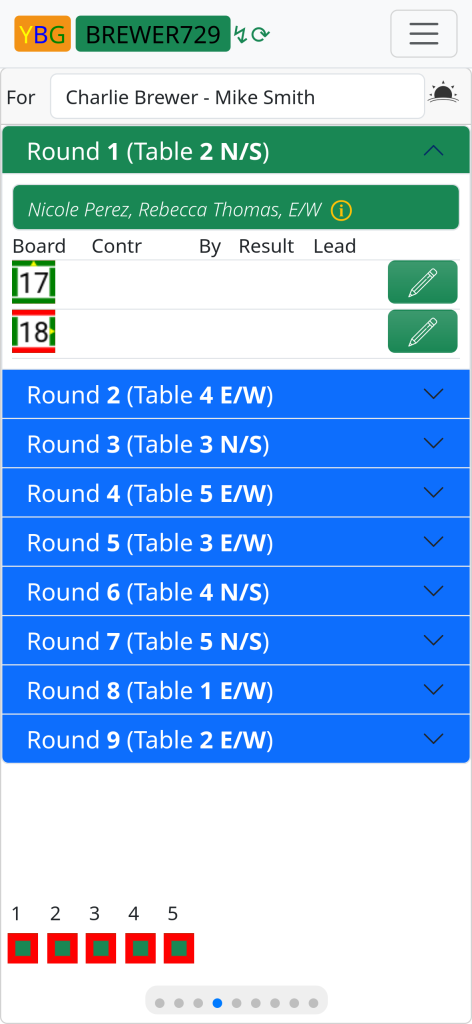
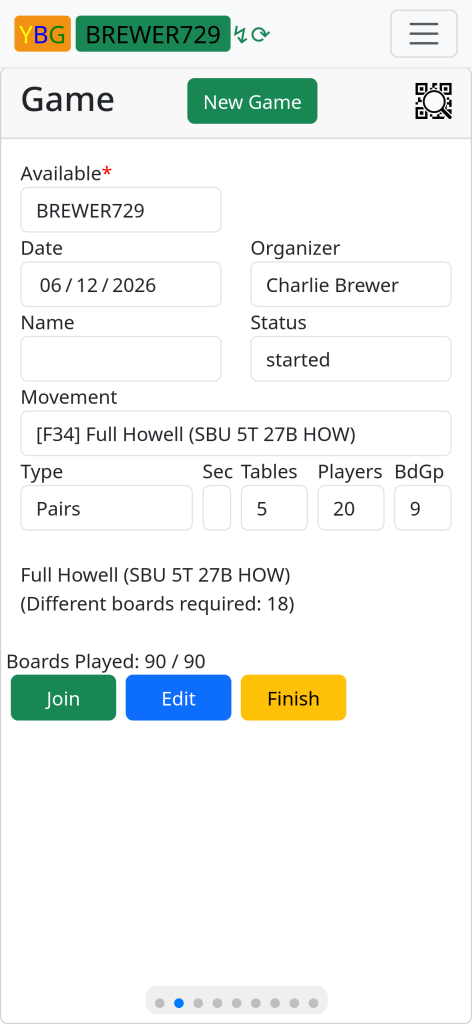
When all players have finished, you can check the “Game” screen to see the status. The image below shows that 90 of an expected 90 boards have been entered (9 rounds x 2 boards x 5 tables). If something appears amiss, you can go back to the play screen and check each table to see if something is missing and with the players as necessary.
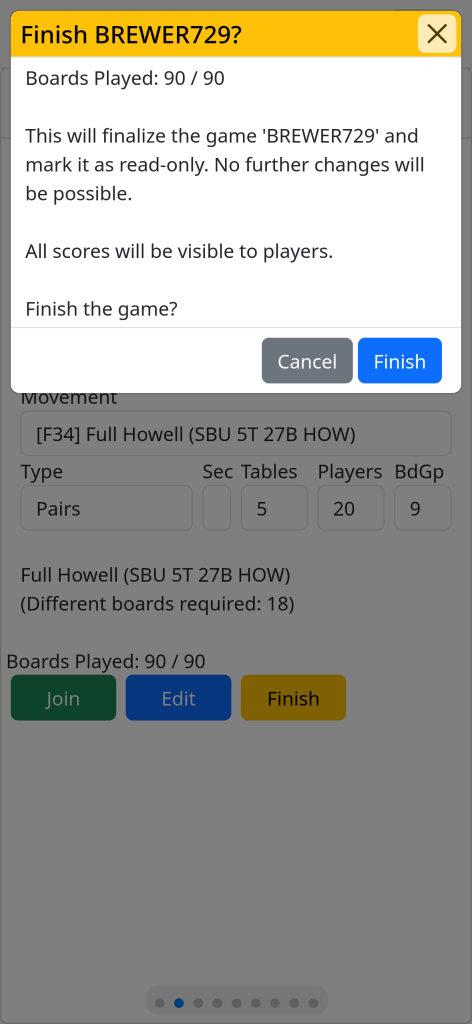
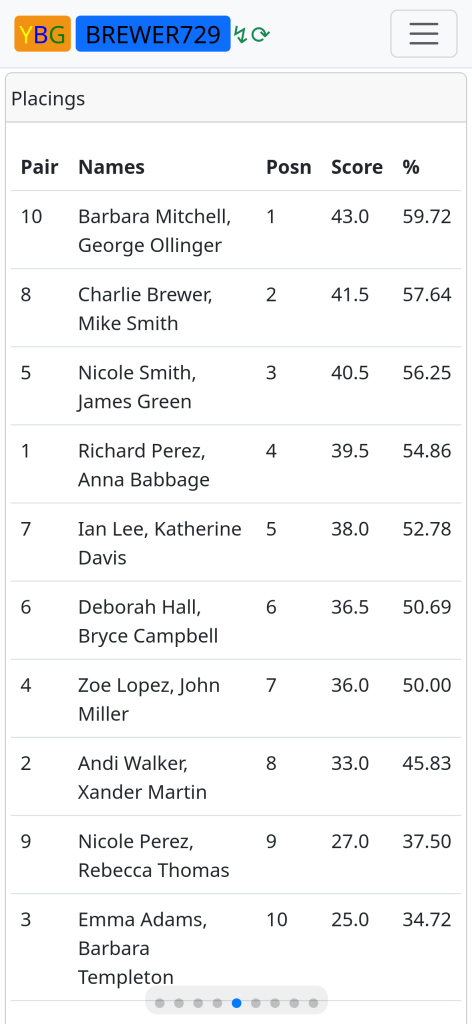
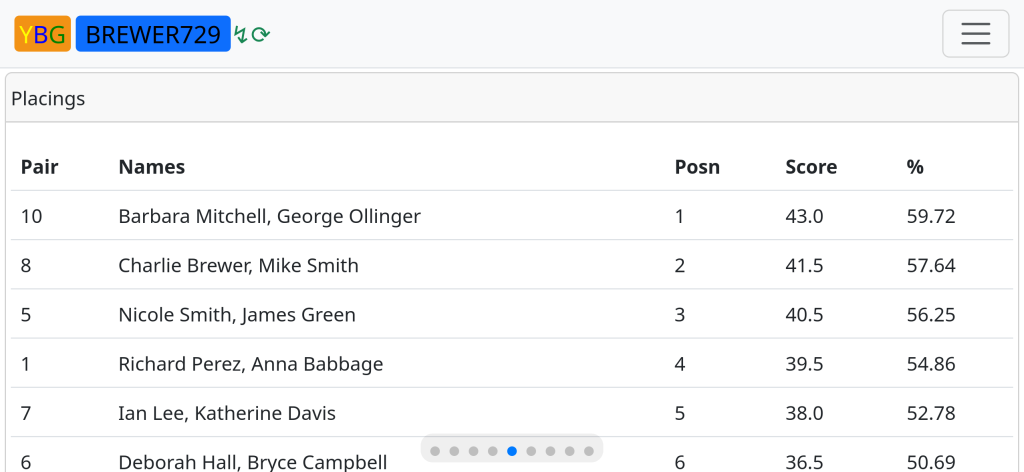
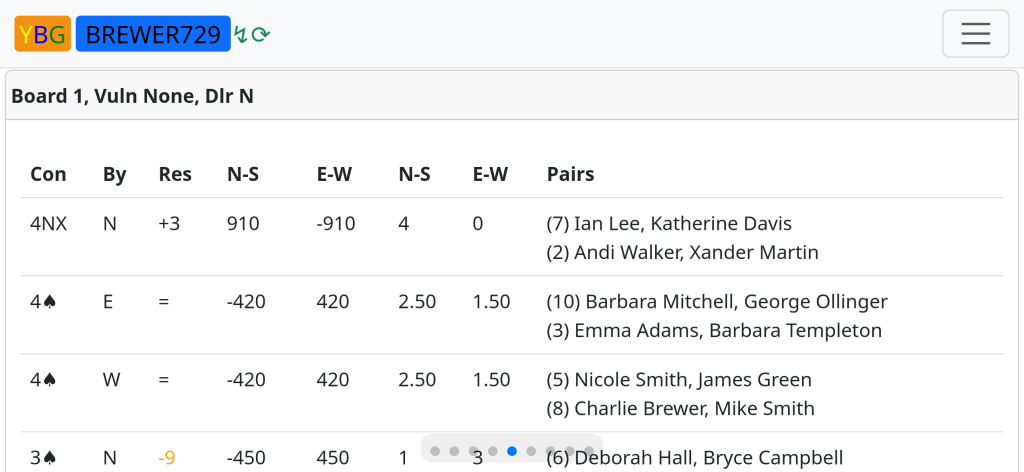
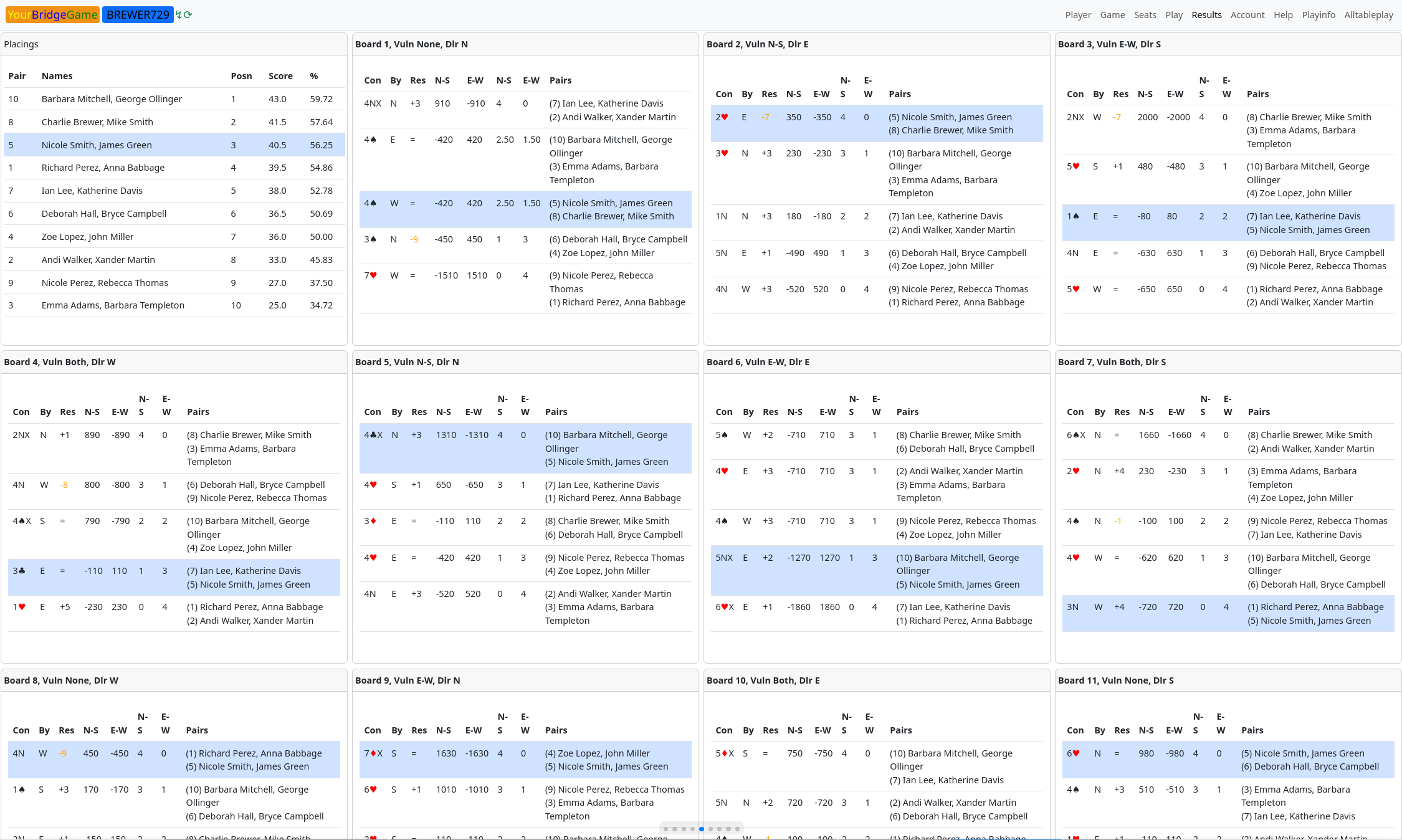
If everything is complete, click “Finish” and then game is then completed. Results shown on the “Results” screen will be full and complete. If you have used a dealing machine and uploaded the handrecord “DUP” file, this will be shown as well as a Double Dummy Analysis. It looks better in landscape. It looks even better on a large desktop screen.