The app can work in several different ways:
- Player Mode
- The Device is configured to be used and carried by a player. The movement shown on the “Play” screen is specific to that player.
- Table Mode
- The Device is configured to be left on a specific table. The device tells the players where to go next but the device remains.
- Personal Usage
- The Game is configured to have people enter their names when starting
- Club Mode
- The Game is configured for a specific club (ACBL etc) and to have people enter their Club IDs
Player Mode
This is the typical usage for small, social gatherings. Each player/pair has their own device. The device is trusted by the user and vice versa. The device remains with the user at all times. Nothing needs to be done for this mode. The player simply types in their name and the ID of the game and selects their seat.
Table Mode
The Host/Admin/Director will choose a table number for the device on the Table Screen and lock it. Since the device is to be left on table clearly guests/players will have free access to the device. Trust is the question. If the host wants to prevent access to other areas of the device, either the device can be configured to use a guest user, or the app can be “Pinned” to the screen and locked there requiring a password to overcome. This is a standard feature of both iOS and Android and more information can be found here. Using this feature the device can be left on the table with all personal information (email etc.) secured.
Personal Usage
Players only enter their names
Club Mode
For users wishing to run a small club game, you can configure game options so uses who have an account can enter their club IDs, Their name will be auto populated in the form.
Admin mode
When the game is running, the device can be unlocked and placed in admin mode. Admin mode allows the user to access all areas of the device and change settings. The admin code is configured in the game options screen.
Game Options
When configuring the game you director can
Director Delegation
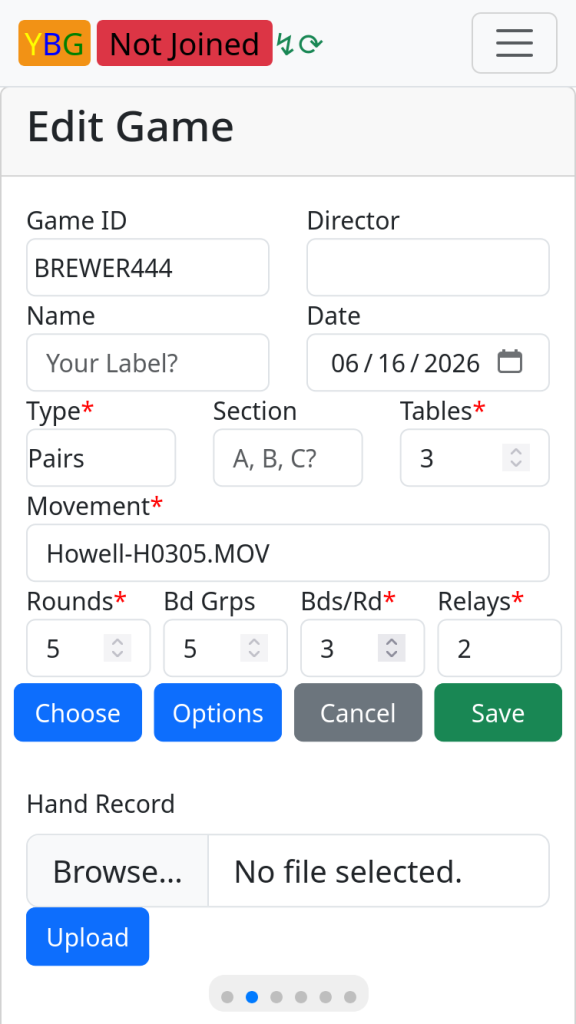
On the game edit screen the Host can delegate the role of director to one of the other players who have already taken their seat.
The game can be given a name to help user choose it from their drop-down list on the Player screen. The drop-down is only populated if the user (or the device they are using) is actively following the Host. That is:
Once the user has joined (played) a game configured by the Host, the user will see a list of games configured by the Host in their drop-down. A user can only follow one Host. Choosing a game from another host will change this attachment.
The date can be changed to a future date allowing the game to be configured in advance.
The game can be given a Section Letter. If the device is locked in ‘Table’ Mode, the device will automatically attach to new games of the same section when they are created by the host that the device is following.
The Bds/Rd, (Boards per Round) sets the number of boards per board group.
Clicking the Options button brings up a screen with a lot of options for the game. See below.
Game Options
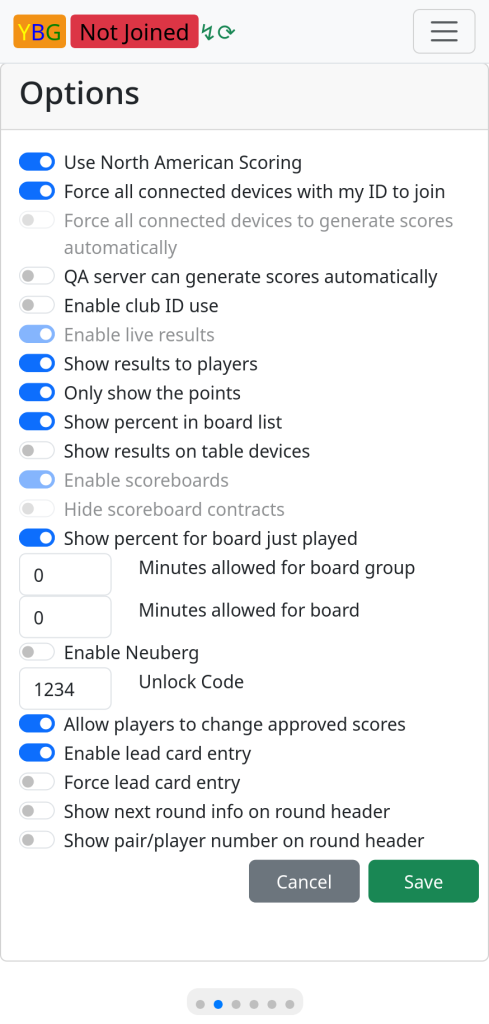
North American scoring uses 0.5 pts for a draw and 1 one for a win versus elsewhere which uses 2pts for a win.
Force all connected devices… will force other devices, following my ID to automatically join the game.
Enable club IDs will show a field on the seating screen to allow users to enter their club ID.
Show results to players enables the results page to be populated throughout the game.
Only show points hides the contracts on the results screen until the game is finished.
Show results on table devices allow devices in Table mode to see results.
Show percent allows the device to show percentages to the user.
Enable Neuberg turns on Neuberg calculations for incomplete boards.
Unlock code, the admin code needed to unlock the device.
Allow players to change scores keeps the entered scores unlocked.
Enable lead card entry allows users to enter the lead card from the score entry screen.
Force lead card entry will not allow the user to save the score unless the lead is entered.
Show next round info adds a lot information to the round header on the play screen.
Show pair/player number adds the pair/player number to the round header.
Hand Record File
If a dealing machine has been used, a DUP file can be uploaded allowing the server to perform double dummy analysis and show this and the hand records on the results page.