
As a player, you don’t need to have an account set up. If you do, then at the end you will receive a link to the game results in your email.
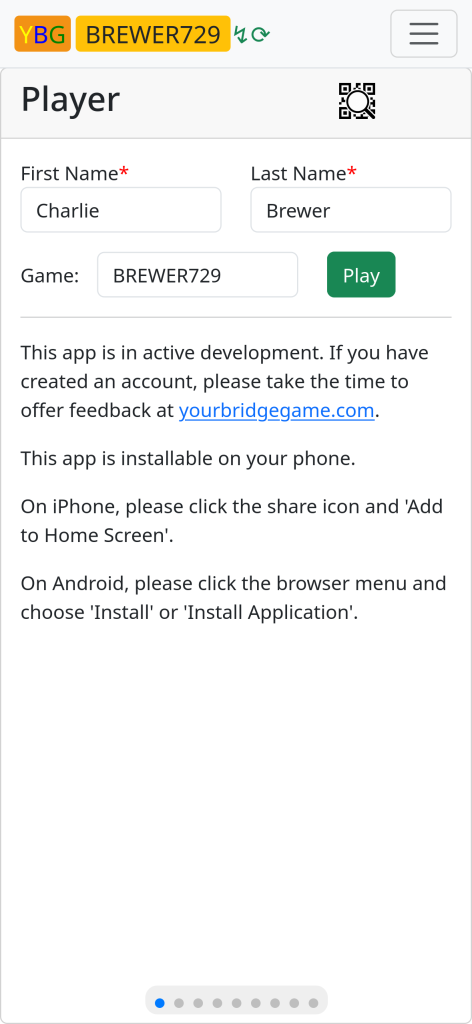
To play a game you can either scan the QR code from another player already connected or you can go to the home page of this web site and “Open the App”. It is recommended that you connect to the local WiFi if you have questionable service quality at the location.
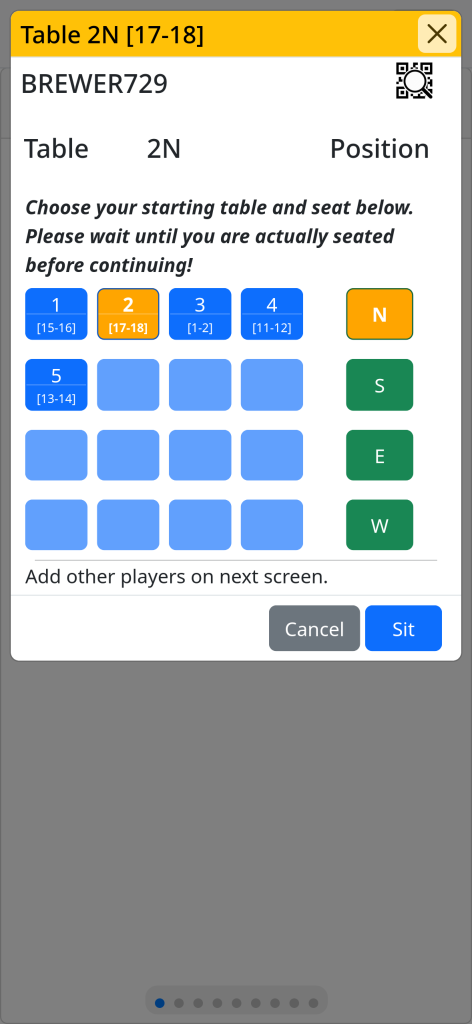
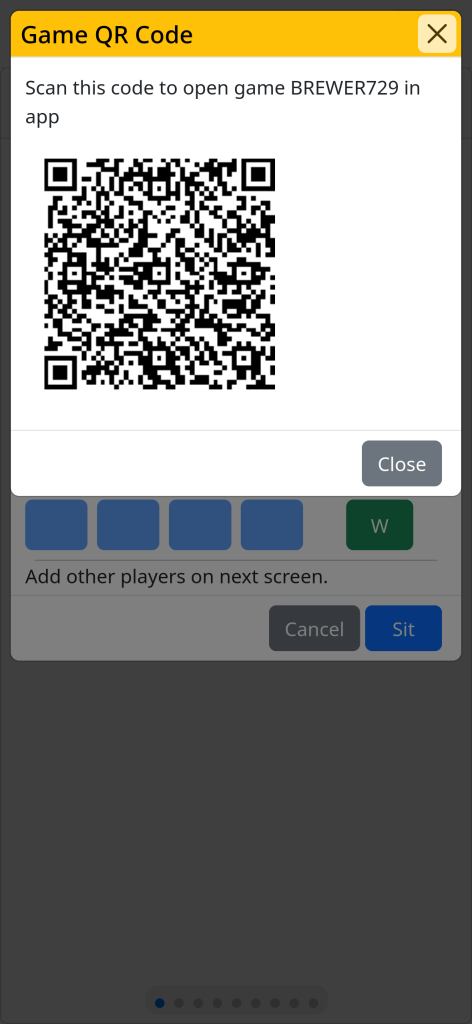
Enter your name and the name of the game (if necessary) and click “Play”. You will be asked to choose your seat. In this example I chose 2N. The lower right hand corner has a button ‘Sit’ that may be available of greyed out if the host/director has not enabled it yet by ‘releasing’ the game. Note the QR code icons. If someone else wishes to join the game you can click to open the QR code for them to scan. Note that at the top of the “Choose Seat” screen it shows the boards [17-18] you will need at table 2 and that each table button also has that information. This will help you and others get the boards to the right tables.
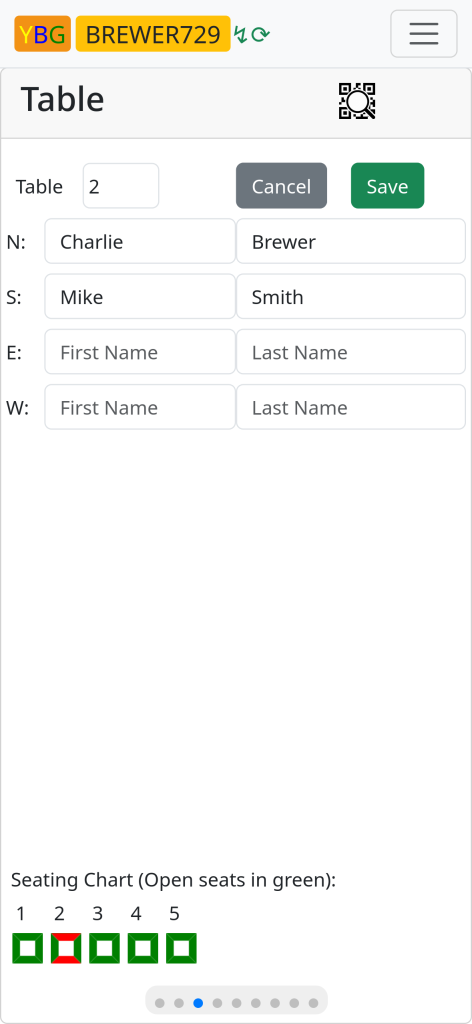
When the host has “released” the game and you click “Sit” you will be on the “Table” screen. Add your partner to the other seat and click “Save”.
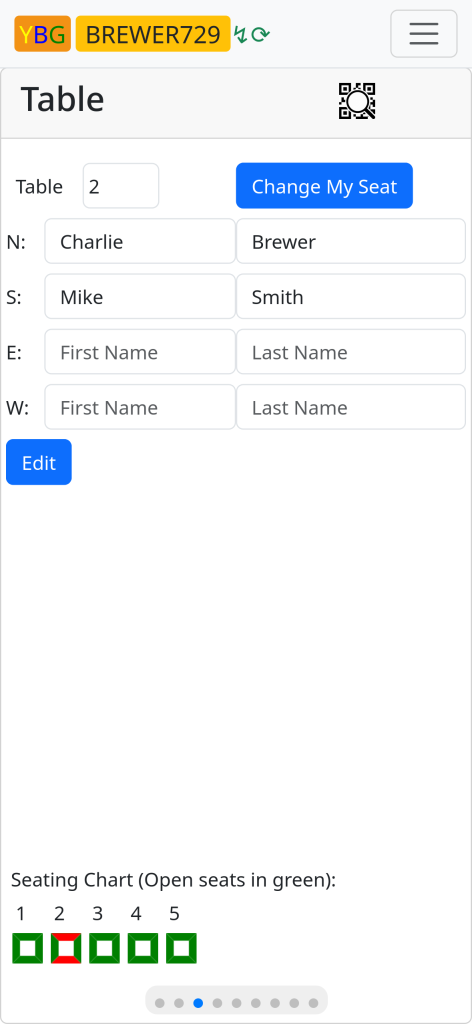
If you have sat in the wrong seat, you MUST use the “Change My Seat” button. This informs the device that you have moved. This is how the device can create your movement plan to allow you to move from table to table with the correct boards. When all the player seats are taken, the host will “Start” the game and play will commence. The “Play” screen shows you everything you need to know to play the game.
The screen shows the movements for you and you partner as you move from round to round. The green color indicates where the device expects you to be entering data. Blue indicates rounds to come and grey indicates completed rounds. Orange indicates a board that needs approval and red indicates an problem that has to be overcome. Typically this happens when you have no connection to the internet. Moving to a new location and viewing the app will often fix this situation automatically.
For example, if you have a table in a basement, you may not be able to upload scores if you are out of network coverage. However, scores you enter in this situation will be saved on your device and will automatically upload later when you are seated at location with better connection. Please make sure that there are no Red headings on your play screen
Note that if you are the ‘Director’/’Admin’ of the game, you can see all the tables at the bottom of the screen. These are buttons that allow you to view and administer other tables as needed.
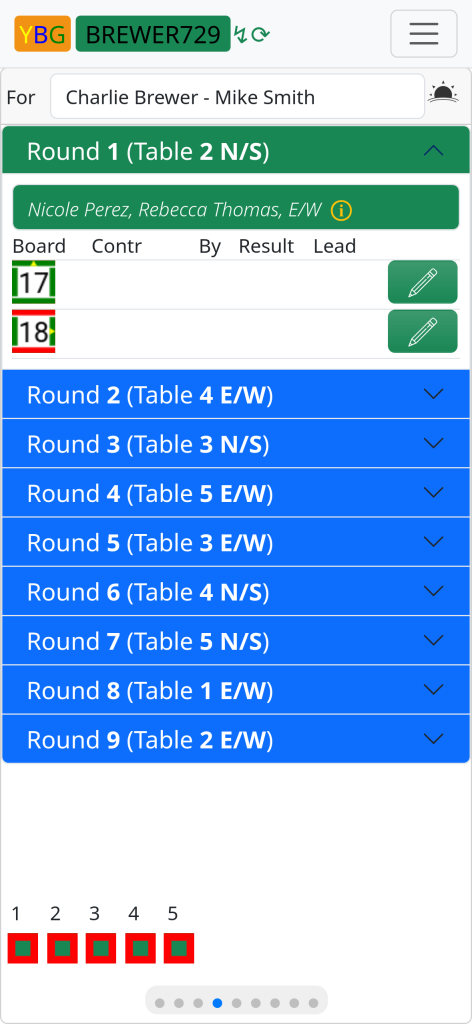
The display shows all the rounds (1-9) and the table and your seat:
Round 1, Table 2 N/S. You will be playing against Nicole and Rebecca who are seated E/W. You will be playing boards 17 and 18.
Then Round 2, Table 4 E/W.
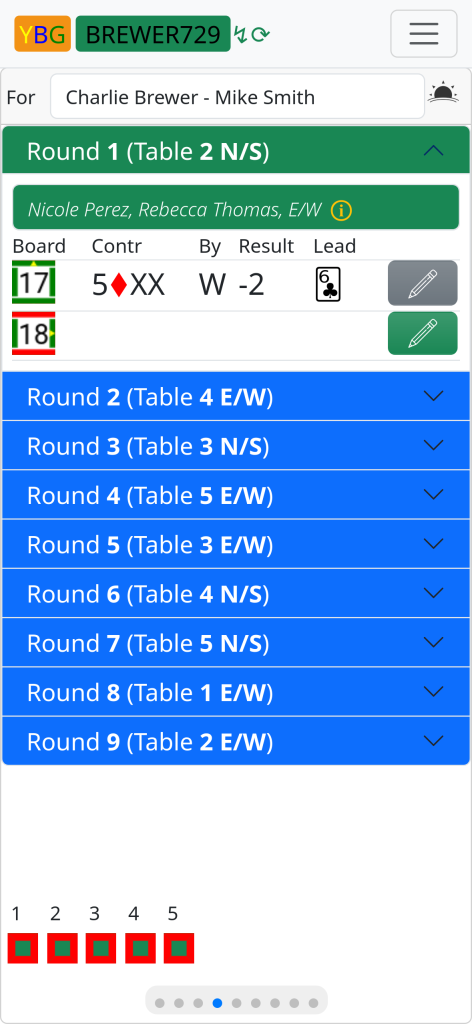
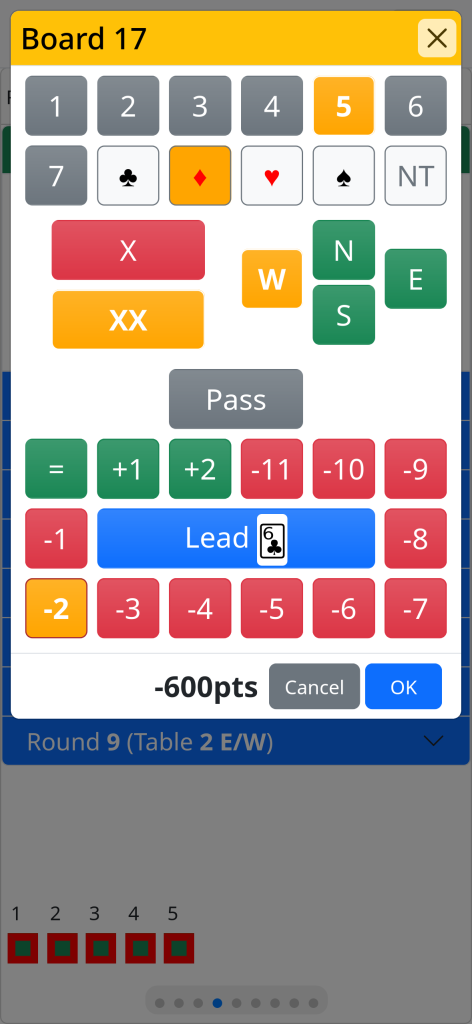
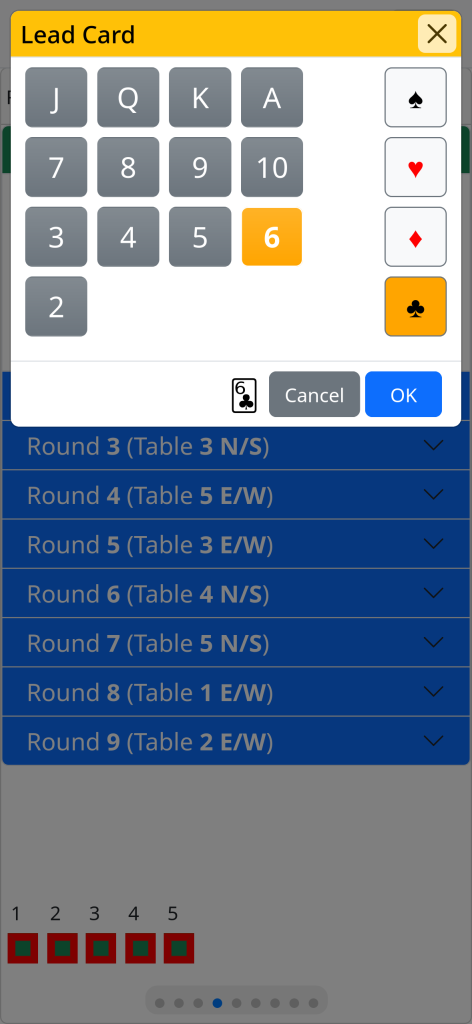
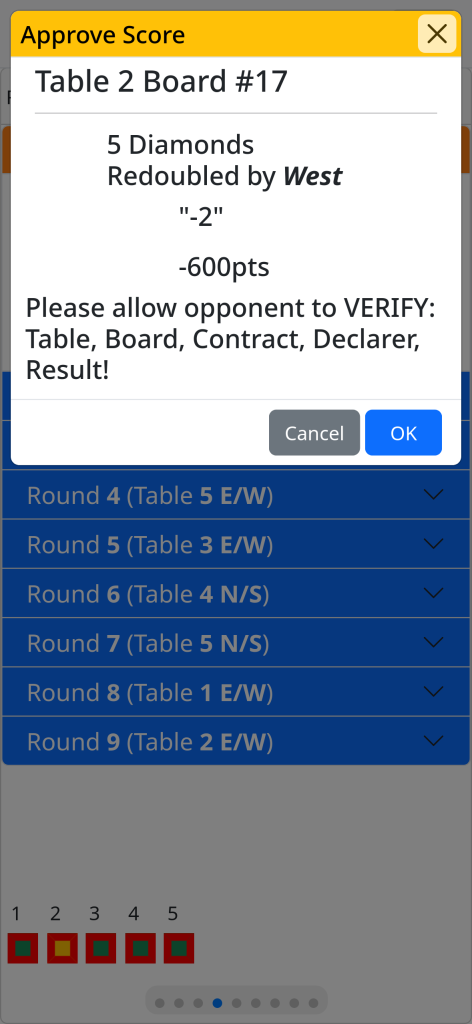
The screen above shows a result entered for Board 17. The entered score is 5 diamonds by West, redoubled, going down 2 with a Lead of the 6 of Clubs.
To enter a score you click on the Pencil icon (or anywhere on the row). Choose the contract and result. Choose the lead (as appropriate). When you click OK on the entry, the Approve Score dialog will appear to show to the opponents for review. Please check everything carefully. Especially the board number if this is a relay round.
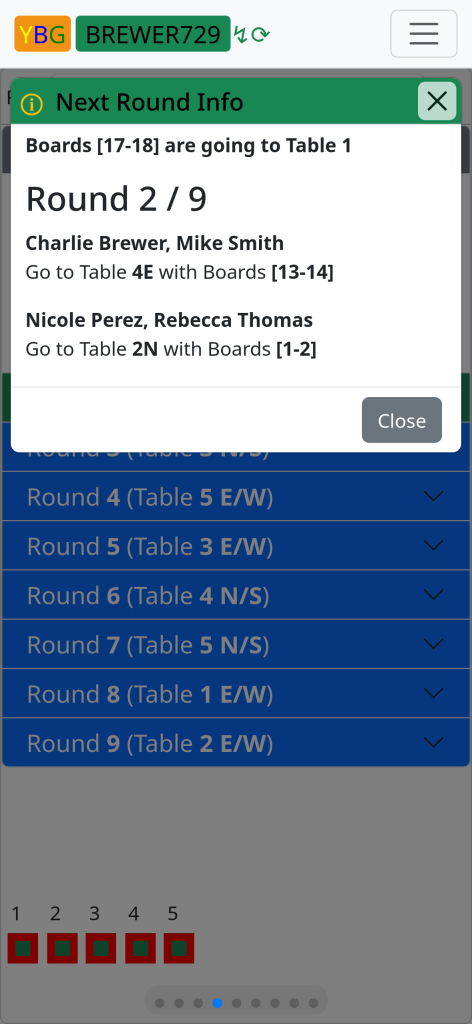
At the end of each round you will be given information about where you, the opponents and the boards need to go. This is the same information that can be accessed by clicking the 🛈 on the round header next to the opponents names.
When the game has ended, or in fact at any time during play, you can navigate to the “Results” screen to see the results/positions. When the game has ended all contract information can be seen, but not until then.